
Labels in Gmail allow you to organize and categorize your emails in a way that makes sense to you. Whether you want to create labels for different projects, clients, or simply to keep your inbox organized, labels can be a useful tool.
1. Login to your Gmail account and click on the gear icon in the top right corner. From the dropdown menu, select “Settings.”


3. Enter the name of your label in the “Label name” field. You can also choose to nest your label under an existing label by selecting it from the “Parent label” dropdown menu.
When you’re done, click “Create” to create your new label. Your new label will now appear in the list of labels on the Labels tab.

4. the label can be seen at the left side bar

5. you could drag the label to email (ADD label to email), or drag email to label (MOVE the email under the label)

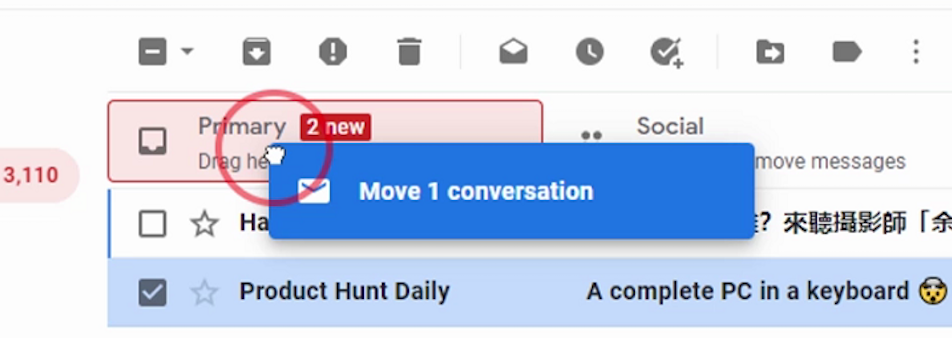
These emails are important, and should not be put inside promotion tab!
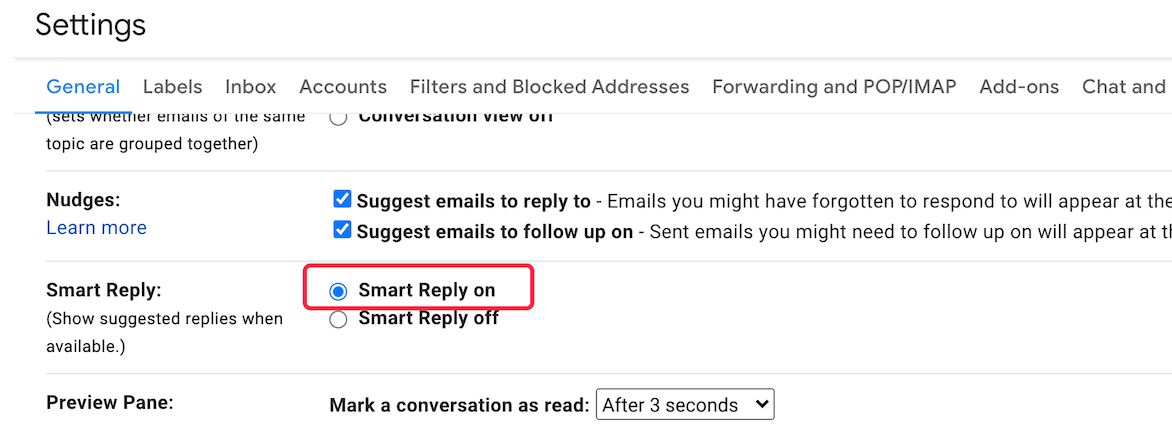
Gmail will guess a few applicable replies, and you simply select one of them.
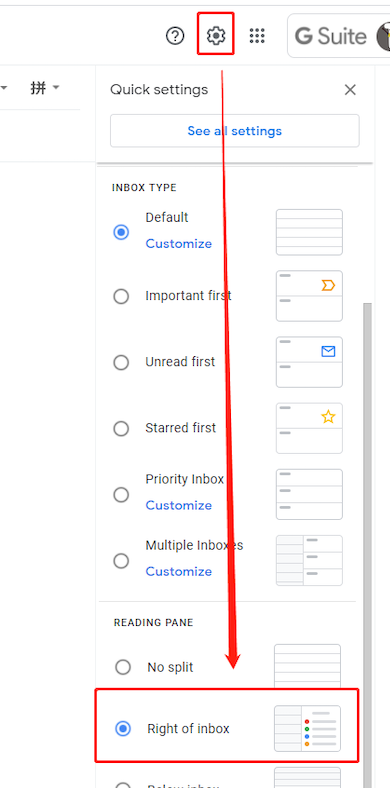
Always show the email list at the screen, even when you are reading the email content.
 Translate